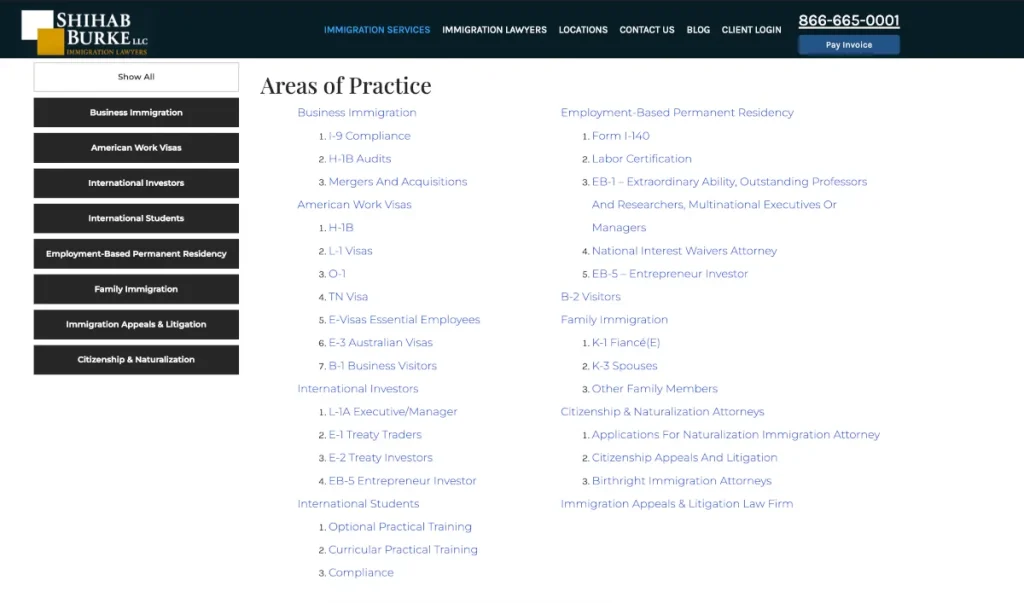
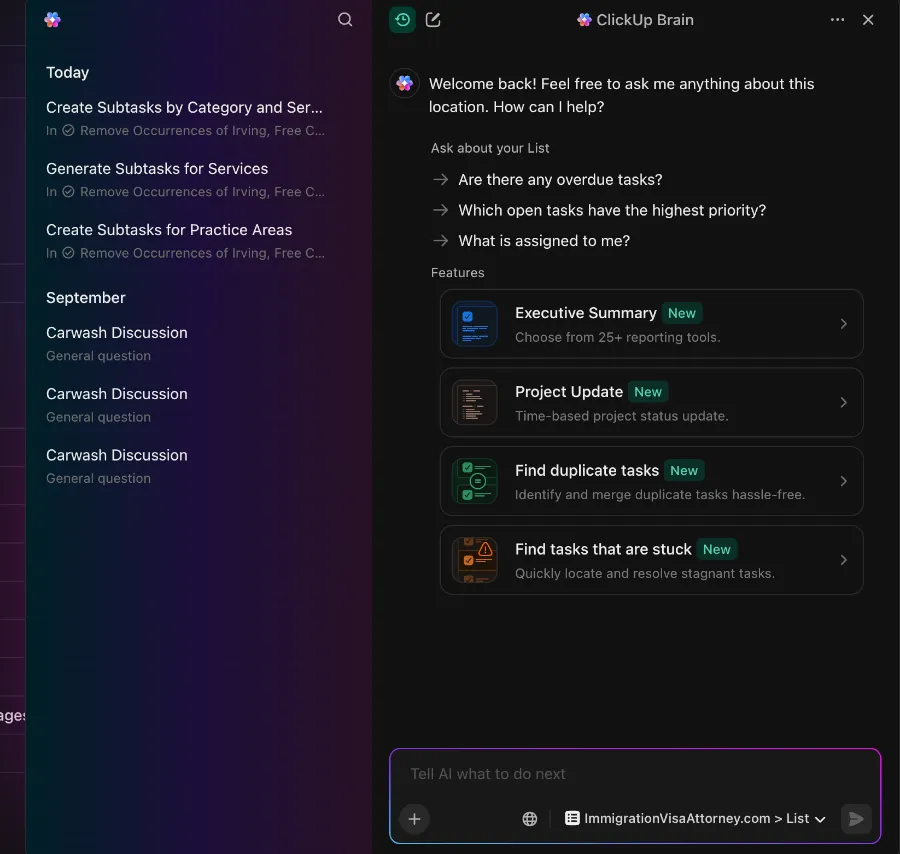
Hello audience. Today we’re going over a very useful application of the Artificial Intelligence (AI) ClickUp tool – “Brain”. In particular, we’ll be utilizing Brain to create tasks on the go with a screenshot. I say “on the go”, the truth is, that for what AI is, this could be improved even further. This little AI Brain shortcut however, will facilitate your life in many ways. You will be able to create tasks from a screenshot! (we haven’t tried video yet) While in the process of creating a list of tasks for a website we manage, we ran into a problem for the second time… that quickly got tedious… We needed to create subtasks for each of these service pages in blue.
You see, we have this list here of services which all need to be revisited because of some incorrect wording within one of the Elementor sections that each page contains. So, in order to not drag this out any longer, we quickly turned to AI to solve this issue.
Here in this video, you can take a look at this video in which I simplify task creation using ClickUp’s Artificial Intelligence (AI) tool “Brain”
Use AI ClickUp Tool “Brain” to create tasks from Screenshots
If you have been wondering how you can ease the creation of tedious tasks using ClickUp, here is one way you could do that.
- Navigate to the page, component, source code which you would want to create the tasks for.
- Take a screenshot of your window.
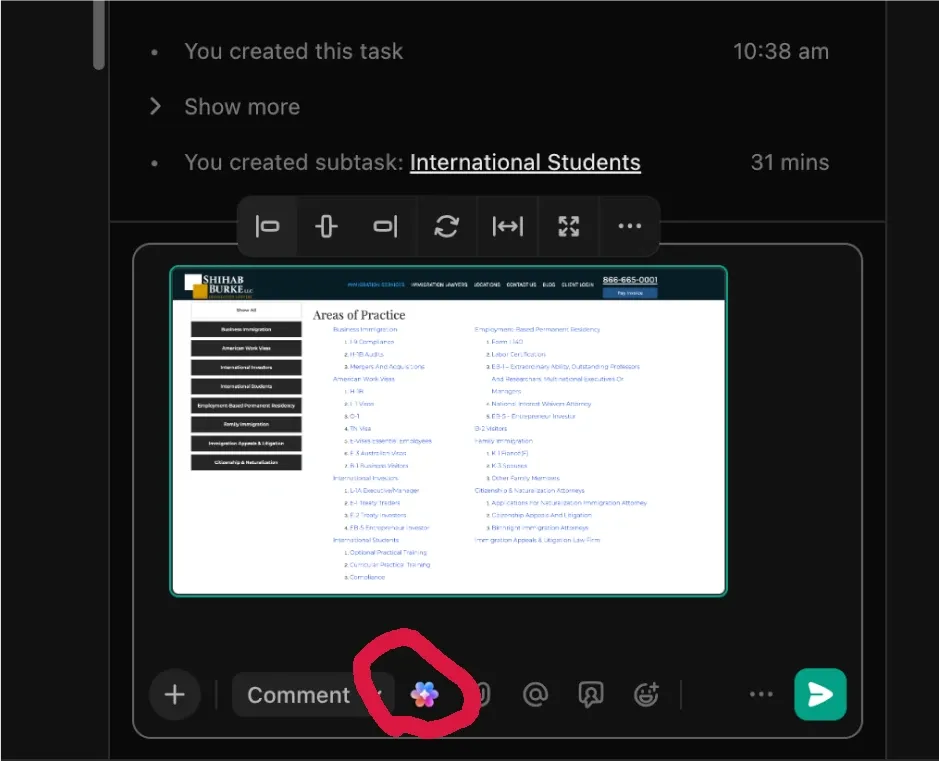
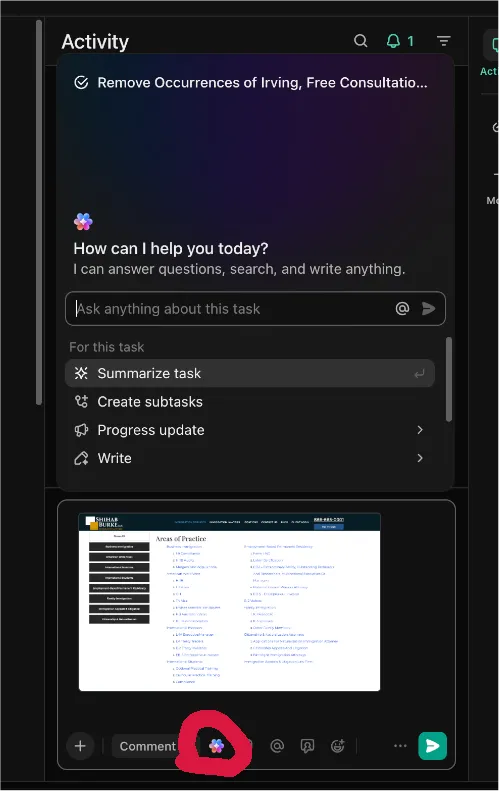
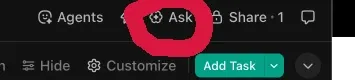
- Upload that screenshot to the Brain tool in ClickUp. So far, I have been able to access the tool from the top right corner of the dashboard and the comment section within a task.
- You can then upload your screenshot to Brain and specifically ask it to create the task or tasks you need.
Hope you’ve enjoyed the read and certainly hope that you can type less using this neat little trick. Thank you